Showing posts with label ERP (SAP). Show all posts
Showing posts with label ERP (SAP). Show all posts


Display Quotation in SAP MM T Code - ME47
Display Quotation:
For Display Quotation follow the same procedure as Maintain Quotation.
STEP : 1
Menu Path: Logistics > Material Management > Purchasing > RFQ/Quotation > Quotation > Display
Transaction Code: ME48
For Display Quotation follow the same procedure as Maintain Quotation.
STEP : 1
Menu Path: Logistics > Material Management > Purchasing > RFQ/Quotation > Quotation > Display
Transaction Code: ME48
Price Comparison in SAP MM - SAP MM User Manual T Code - ME49
Price Comparision:
STEP : 1
Menu Path: Logistics > Material Management > Purchasing > RFQ/Quotation > Quotation > Price Comparision
Transaction Code: ME49

STEP : 2
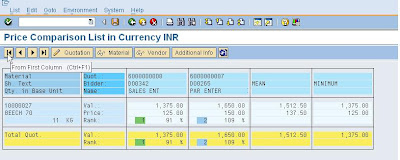
Fill up the Purchase Origination , RFQ Nos & Mean /Minimum Value Quotation and Press Execute Button.

Step : 3
View the Price Comparison and select the party for crate the Purchase Order.
STEP : 1
Menu Path: Logistics > Material Management > Purchasing > RFQ/Quotation > Quotation > Price Comparision
Transaction Code: ME49

STEP : 2
Fill up the Purchase Origination , RFQ Nos & Mean /Minimum Value Quotation and Press Execute Button.

Step : 3
View the Price Comparison and select the party for crate the Purchase Order.


SAP Vendor Master Display / Change T Code - FK03
Display/Change Vendor Master Record
1.1. Access transaction by:
1.2. On screen “Display Vendor: Initial Screen”, enter information in the fields as specified in the table below:
1.3. View the current information on the “Display Vendor: Address” screen.
Press ENTER to go to the next screen.
1.4. View the current information on the “Display Vendor: Control Data” screen.
Press ENTER to go to the next screen.
1.5. View the current information on the “Display Vendor: Payment Transactions” screen.
Press ENTER to go to the next screen.
1.6. View the current information on the “Display Vendor: Accounting Info.” screen.
Press ENTER to go to the next screen.
1.7. View the current information on the “Display Vendor: Payment Transactions” screen.
Press ENTER to go to the next screen.
1.8. View the current information on the “Display Vendor: Correspondence” screen”.
Press ENTER to go to the next screen.
1.9. Enter the necessary changes on the “Change Vendor: Withholding Tax ” screen.
Press ENTER to go to the next screen.
Accounting or purchasing personnel need to view master information for a vendor.
Business Process Description Overview
|
Vendor master data is the data required to conduct business relationships with your vendors. It includes address data and terms of payment, for example. It also controls how business transactions are posted to a vendor account and how the posted data is processed.
|
Input - Required Fields
|
Field Value / Comments
|
Vendor
| |
Company code
| |
Processing Options
|
Procedural Steps:-
1.1. Access transaction by:
Via Menus
|
Accounting -> Financial Accounting -> Accounts Payable -> Master records -> Display
|
Via Transaction Code
|
FK03
|
1.2. On screen “Display Vendor: Initial Screen”, enter information in the fields as specified in the table below:
Field Name
|
Description
|
R/O/C
|
User Action and Values
|
Comments
|
Vendor
|
enter the vendor’s account number
|
R
| ||
Company code
|
the company code ID of the vendor
|
R
|
Use the drop down menu.
|
(Note: On above table, in column “R/O/C”; “R” = Required, “O” = Optional, “C” = Conditional)
Select the appropriate combination of general data or company code data processing
options for screens to change (Edit -> Select all selects all the field groups listed
under General Data and Company Code Data).
options for screens to change (Edit -> Select all selects all the field groups listed
under General Data and Company Code Data).
Press ENTER
Use the white left (F7) or right (F8) arrow buttons at the top left of the screen to navigate between the different general and company code data screens.
1.3. View the current information on the “Display Vendor: Address” screen.
Press ENTER to go to the next screen.
1.4. View the current information on the “Display Vendor: Control Data” screen.
Press ENTER to go to the next screen.
1.5. View the current information on the “Display Vendor: Payment Transactions” screen.
Press ENTER to go to the next screen.
1.6. View the current information on the “Display Vendor: Accounting Info.” screen.
Press ENTER to go to the next screen.
1.7. View the current information on the “Display Vendor: Payment Transactions” screen.
Press ENTER to go to the next screen.
1.8. View the current information on the “Display Vendor: Correspondence” screen”.
Press ENTER to go to the next screen.
1.9. Enter the necessary changes on the “Change Vendor: Withholding Tax ” screen.
Press ENTER to go to the next screen.
1.10. Return.
Vendor Payment Entry in SAP - T Code - F-48
DOWN PAYMENT
Post Vendor Down Payment Request in SAP
Down payment to be made to a vendor.
T Code:- F-48
Clear Vendor Down Payment Request in SAP - T Code - F-54
Clear Vendor Down Payment
Business Process Description Overview :-
You can clear the down payment with the closing invoice by either:
T Code:- F-54
Business Process Description Overview :-
You can clear the down payment with the closing invoice by either:
- Transferring the down payment to the payables account and taking account of this transfer when posting the payment, or
- Directly clearing the down payment with the invoice when the outgoing payment is made
T Code:- F-54
Park Vendor Invoice in SAP - Tcode - FB60
Park Vendor Invoice
Business Process Procedure Overview
Vendor invoice parking enables the user to enter and save (park) incomplete vendor invoices in the SAP system without executing extensive entry checks. This is especially helpful when information such as cost centers and account assignments are not available. Parked vendor invoices may be completed, checked and then posted at a later date - if necessary by a different data entry clerk. When documents are parked, data (for example, transaction figures) is not updated. Although a document number is generated the parked document may still be monitored as an open item. The data can then be evaluated online for reporting purposes from the moment they are parked, rather than having to wait until they have been completed and posted. Another advantage of the parked vendor invoices is that when used in conjunction with payment requests, It will enable the user to maximize cash discounts and pay invoices on time even when the invoice is not actually posted until after the payment.
T Code:- FB60
Business Process Procedure Overview
Vendor invoice parking enables the user to enter and save (park) incomplete vendor invoices in the SAP system without executing extensive entry checks. This is especially helpful when information such as cost centers and account assignments are not available. Parked vendor invoices may be completed, checked and then posted at a later date - if necessary by a different data entry clerk. When documents are parked, data (for example, transaction figures) is not updated. Although a document number is generated the parked document may still be monitored as an open item. The data can then be evaluated online for reporting purposes from the moment they are parked, rather than having to wait until they have been completed and posted. Another advantage of the parked vendor invoices is that when used in conjunction with payment requests, It will enable the user to maximize cash discounts and pay invoices on time even when the invoice is not actually posted until after the payment.
T Code:- FB60
Post Parked Document in SAP - Transaction Code - FBV0
How To post a parked general ledger document
Business Process Procedure Overview:
Document parking can be use to enter and store (park) incomplete documents in the SAP System, without carrying out extensive entry checks. Parked documents can be completed, checked and then posted at a later date - if necessary by a different data entry Clerk.
Parked documents can be post either individually or via a list. To post several parked documents via a list, the system issues a list of parked document for you to choose from. From this list, you can then carry out any necessary post-processing to parked documents that could not be posted due to missing information such as a cost accounting assignment.
T Code:- FBV0
Business Process Procedure Overview:
Document parking can be use to enter and store (park) incomplete documents in the SAP System, without carrying out extensive entry checks. Parked documents can be completed, checked and then posted at a later date - if necessary by a different data entry Clerk.
Parked documents can be post either individually or via a list. To post several parked documents via a list, the system issues a list of parked document for you to choose from. From this list, you can then carry out any necessary post-processing to parked documents that could not be posted due to missing information such as a cost accounting assignment.
T Code:- FBV0
Change Parked Document Line Item in SAP
Change Parked Document
Business Process Procedure Overview :-
Document parking can be use to enter and store (park) incomplete documents in the SAP System, without carrying out extensive entry checks. Parked documents can be completed, checked and then posted at a later date - if necessary by a different data entry clerk.
Parked document may also be changed. Changing a parked document is broken up to two transaction codes: FBV2 and FBV4. To change line items details transaction code FBV2 should be use while transaction code FBV4 is use to change header detail. This BPP will illustrate the process to change line item detail, transaction code FBV2. Refer to BPP on “Change Header Detail” to view more information on changing a parked document’s header detail.
Business Process Procedure Overview :-
Document parking can be use to enter and store (park) incomplete documents in the SAP System, without carrying out extensive entry checks. Parked documents can be completed, checked and then posted at a later date - if necessary by a different data entry clerk.
Parked document may also be changed. Changing a parked document is broken up to two transaction codes: FBV2 and FBV4. To change line items details transaction code FBV2 should be use while transaction code FBV4 is use to change header detail. This BPP will illustrate the process to change line item detail, transaction code FBV2. Refer to BPP on “Change Header Detail” to view more information on changing a parked document’s header detail.
T Code:- FBV2
Display Parked Documents In SAP - T Code FBV3
Display Parked Document
To display a parked document
Business Process Procedure Overview
Document parking can be use to enter and store (park) incomplete documents in the SAP System, without carrying out extensive entry checks. Parked documents can be completed, checked and then posted at a later date - if necessary by a different data entry clerk.
Parked documents may be display individually or via a list.
T Code :- FBV3
To display a parked document
Business Process Procedure Overview
Document parking can be use to enter and store (park) incomplete documents in the SAP System, without carrying out extensive entry checks. Parked documents can be completed, checked and then posted at a later date - if necessary by a different data entry clerk.
Parked documents may be display individually or via a list.
T Code :- FBV3
Enter Vendor Credit Memo in SAP ( Park / Post ) T Code :- FB65 , FBR2
CREDIT MEMO’s
Enter (Park / Post) Vendor Credit Memo
Receive a credit memo from vendor for overcharged/damaged items
Business Process Procedure Overview:-
A vendor credit memo is the reversal of part or all of an invoice. When an invoice is cancelled, the system automatically creates a credit memo. The credit memo posting is similar to other standard document postings within the SAP R/3 system. Once posted, the credit memo is applied against the vendor account balance, and subsequently offsets future payments.
T Code: FB65 , FBR2
Enter (Park / Post) Vendor Credit Memo
Receive a credit memo from vendor for overcharged/damaged items
Business Process Procedure Overview:-
A vendor credit memo is the reversal of part or all of an invoice. When an invoice is cancelled, the system automatically creates a credit memo. The credit memo posting is similar to other standard document postings within the SAP R/3 system. Once posted, the credit memo is applied against the vendor account balance, and subsequently offsets future payments.
T Code: FB65 , FBR2
Document Display in SAP T Code - FB03
With the help of this T code you can display / see the details of any Document in SAP.
Business Process Description Overview
This process will display a previously created accounting document. To display a specific document, enter document number, company code and fiscal year (optional).
T Code :- FB03
Display Account Balances
Business Process Description Overview
This process will display a previously created accounting document. To display a specific document, enter document number, company code and fiscal year (optional).
T Code :- FB03
Mass Document Reversal in SAP T Code - F.80
Mass Reversal of Documents
Business Process Description Overview
A function you can use to reverse many documents, which have been posted either manually or automatically.
Mass reversal offers two modes for reversing documents:
T Code :- F.80
A function you can use to reverse many documents, which have been posted either manually or automatically.
Mass reversal offers two modes for reversing documents:
- Reversal (for reversing documents in the same period in which the target document was posted)
- Inversion (for reversing documents in a different period)
T Code :- F.80
Vendor Account Clearing in SAP T code - F-44
Clear Vendor
Used to clear open items from one vendor account.
Business Process Description Overview
Used to clear open items from one vendor account.
Business Process Description Overview
This function differs from posting with a clearing transaction or posting with a payment in the following ways:
T Code :- F-44
- You do not need to enter a document header
- You can only clear open items from one account
T Code :- F-44
Post Outgoing Payment in SAP T Code - F-53
PAYMENTS
Post Out Going Payment
Manual payment on an existing vendor invoice.
Business Process Description Overview:-
Manual payment on an existing vendor invoice.
Business Process Description Overview:-
This is a posting for those checks that are created manually (outside the SAP R/3 system, perhaps typed or hand-written). A check will not be generated in R/3 but the vendor and cash accounts will be updated appropriately.
T Code :- F-53
Create Remittance Challan in SAP T Code - J1INCHLN
With holding Taxes
Creation of Remittance Challan
TRANSACTIONAL STEPS- Creation of Remittance Challan
BUSINESS PROCESS STEPS / BPP NUMBER:-
At month end Post Challan for the purpose of depositing the Withholding taxes
T Code :- J1INCHLN
Creation of Remittance Challan
TRANSACTIONAL STEPS- Creation of Remittance Challan
BUSINESS PROCESS STEPS / BPP NUMBER:-
At month end Post Challan for the purpose of depositing the Withholding taxes
T Code :- J1INCHLN
Updating Remittance Challan in SAP T Code - J1INBANK
Updating Remittance Challan
TRANSACTIONAL STEPS- Update TDS Remittance Challan Details (Bank Challan Update – Create Bank Challan)
BUSINESS PROCESS STEPS / BPP NUMBER
Update the Bank Challan no.
T Code :- J1INBANK
TRANSACTIONAL STEPS- Update TDS Remittance Challan Details (Bank Challan Update – Create Bank Challan)
BUSINESS PROCESS STEPS / BPP NUMBER
Update the Bank Challan no.
T Code :- J1INBANK
TDS Certificate Printing in SAP T Code - J1INCERT
Printing TDS Certificate
TRANSACTIONAL STEPS- Print TDS Certificates
BUSINESS PROCESS STEPS / BPP NUMBER:-
Printing of TDS Certificates for the Vendor
T Code :- J1INCERT
TRANSACTIONAL STEPS- Print TDS Certificates
BUSINESS PROCESS STEPS / BPP NUMBER:-
Printing of TDS Certificates for the Vendor
T Code :- J1INCERT
Display Customer Master Data / Record in SAP T Code- FD03
Displaying Customer Master Record
Accounting or purchasing personnel need to view master information for a Customer.
Business Process Description Overview
Customer master data is the data required to conduct business relationships with your Customers. It includes address data and terms of payment, for example. It also controls how business transactions are posted to a Customer account and how the posted data is processed.
Accounting or purchasing personnel need to view master information for a Customer.
Business Process Description Overview
Customer master data is the data required to conduct business relationships with your Customers. It includes address data and terms of payment, for example. It also controls how business transactions are posted to a Customer account and how the posted data is processed.
T Code :- FD03


