Showing posts with label SAP - MM User Manual. Show all posts
Showing posts with label SAP - MM User Manual. Show all posts


Display Quotation in SAP MM T Code - ME47
Display Quotation:
For Display Quotation follow the same procedure as Maintain Quotation.
STEP : 1
Menu Path: Logistics > Material Management > Purchasing > RFQ/Quotation > Quotation > Display
Transaction Code: ME48
For Display Quotation follow the same procedure as Maintain Quotation.
STEP : 1
Menu Path: Logistics > Material Management > Purchasing > RFQ/Quotation > Quotation > Display
Transaction Code: ME48
Price Comparison in SAP MM - SAP MM User Manual T Code - ME49
Price Comparision:
STEP : 1
Menu Path: Logistics > Material Management > Purchasing > RFQ/Quotation > Quotation > Price Comparision
Transaction Code: ME49

STEP : 2
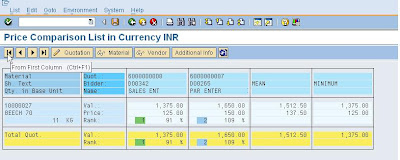
Fill up the Purchase Origination , RFQ Nos & Mean /Minimum Value Quotation and Press Execute Button.

Step : 3
View the Price Comparison and select the party for crate the Purchase Order.
STEP : 1
Menu Path: Logistics > Material Management > Purchasing > RFQ/Quotation > Quotation > Price Comparision
Transaction Code: ME49

STEP : 2
Fill up the Purchase Origination , RFQ Nos & Mean /Minimum Value Quotation and Press Execute Button.

Step : 3
View the Price Comparison and select the party for crate the Purchase Order.

Outbound Delivery Creation, Change, Display, Monitor in SAP SD & MM T Codes
Outbound Delivery Creation, Change, Display etc in SAP
Delivery (Outbound) :-
VL00 :- Shipping
VL01 :- Create Delivery
VL01N :- Create Outbound Dlv. with Order Ref.
VL01NO :- Create Outbound Dlv. w/o Order Ref.
VL02 :- Change Outbound Delivery
Delivery (Outbound) :-
VL00 :- Shipping
VL01 :- Create Delivery
VL01N :- Create Outbound Dlv. with Order Ref.
VL01NO :- Create Outbound Dlv. w/o Order Ref.
VL02 :- Change Outbound Delivery
Planned Order Maintenance / Configuration In SAP MM/PP T Codes
Planned Order Create, Display, Change, Access, Conversion, Partial Conversion, Availability Check & Execute Action T Codes in SAP.
Planned Order:-
MD11 :- Create planned order
Planned Order:-
MD11 :- Create planned order
MD12 :- Change planned order
MD13 :- Individual access of planned order
MD16 :- Collective access of planned orders
Planning Run in SAP-MM Planning Table T Codes
Planning Run – On Line, SA BACKGROUND JOB, Planning Table
PLANNING RUN:-
MS01 :- ON LINE
PLANNING RUN:-
MS01 :- ON LINE
MSBT :- SA BACKGROUND JOB
MS02 :- SINGLE ITEM - MULTI LEVEL
MS03 :- SINGLE ITEM - SINGLE LEVEL
SAP User Manual for MM Material Management Module - Change & Display Material - T Code MM02, MM03
For Change & Display Material follow the same procedure as Material Creation.
Change Material.
Menu Path: Logistics > Material Management > Material Master > Material > Change, and press enter.
Display Material.
Menu Path: Logistics > Material Management > Material Master > Material > Display, and press enter.
Transaction Code: MM03
SAP User MM Manual - Create Purchase Order - T Code- ME21N
Create Purchase Order in SAP:

STEP : 2
Enter the required field, i.e. Vendor Code and press enter. If you entered the RFQ no in RFQ Column in Item Over View system automatically display the material description / if you generate P O without RFQ then fill up the this field s, Material, P O QTY, Price, Material Group, Plant, Purchasing Organization, Storage Location etc.
Then fill up the Org. Date Field, i.e – Purchasing Org, Purchasing Group, Company Code.

STEP : 3
Fill up the Payment Terms in Delivery / Invoice field and press enter. Then you may select the invoice button & select the GR Based IV & TAX Code and Display the Taxes overview, i.e. Base Amount, CVD, CST / Vat.

Display Tax Menu and back.

STEP : 3
In Condition type Fill up the required condition, Price, Delivery Charges etc

STEP : 4
In header menu fill up the condition – Packing & Forwarding, Insurance etc and Save.

STEP : 1
Menu Path: Logistics > Material Management > Purchasing > Purchase Order > Create > Vendor / Supplying Known
Transaction Code: ME21N

STEP : 2
Enter the required field, i.e. Vendor Code and press enter. If you entered the RFQ no in RFQ Column in Item Over View system automatically display the material description / if you generate P O without RFQ then fill up the this field s, Material, P O QTY, Price, Material Group, Plant, Purchasing Organization, Storage Location etc.
Then fill up the Org. Date Field, i.e – Purchasing Org, Purchasing Group, Company Code.

STEP : 3
Fill up the Payment Terms in Delivery / Invoice field and press enter. Then you may select the invoice button & select the GR Based IV & TAX Code and Display the Taxes overview, i.e. Base Amount, CVD, CST / Vat.

Display Tax Menu and back.

STEP : 3
In Condition type Fill up the required condition, Price, Delivery Charges etc

STEP : 4
In header menu fill up the condition – Packing & Forwarding, Insurance etc and Save.
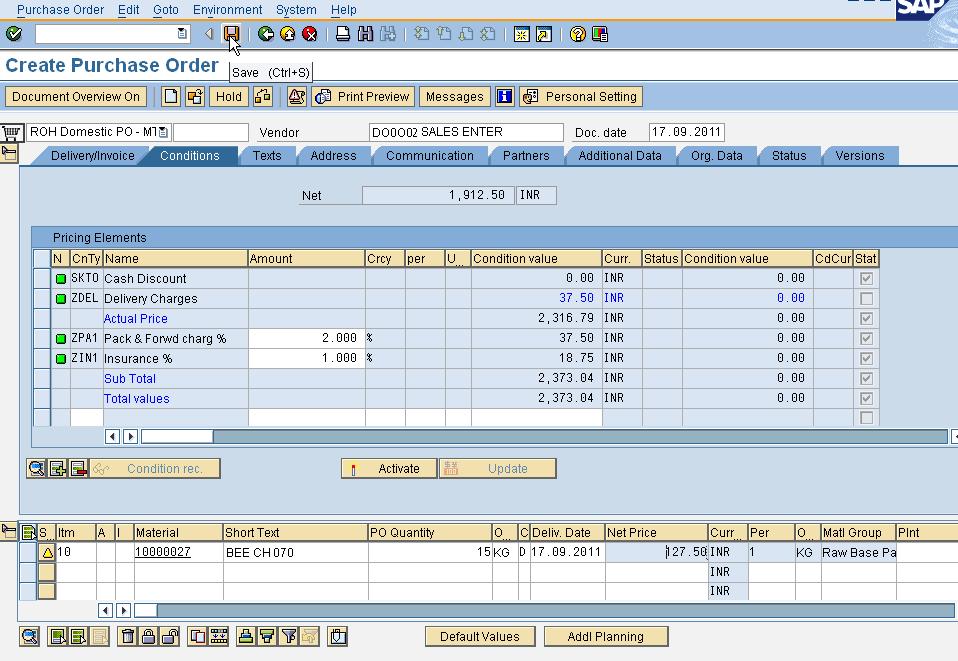
System generated Purchase Order No


How to Change & Display Purchase Requisition in SAP MM - T Code - ME52N, ME53N
For Change & Display Purchase Requisition follow the same procedure as P R Creation.
Change Purchase Requisition ( P R ):
Menu Path: Logistics > Material Management > Purchasing > Purchase Requisition > Change and press enter.
Transaction Code: ME52N
Display Purchase Requisition (P R):
Menu Path: Logistics > Material Management > Purchasing > Purchase Requisition > Display and press enter.
Transaction Code: ME53N
Change Purchase Requisition ( P R ):
Menu Path: Logistics > Material Management > Purchasing > Purchase Requisition > Change and press enter.
Transaction Code: ME52N
Display Purchase Requisition (P R):
Menu Path: Logistics > Material Management > Purchasing > Purchase Requisition > Display and press enter.
Transaction Code: ME53N
How to Create RFQ - Request for Quotation in SAP MM - T Code - ME41
Create RFQ in SAP MM / SD
STEP : 1
Menu Path: Logistics > Material Management > Purchasing > Request for Quotation > Create RFQ, and press enter.
Transaction Code: ME41

STEP : 2
Fill up the required field and press ENTER.

STEP : 3
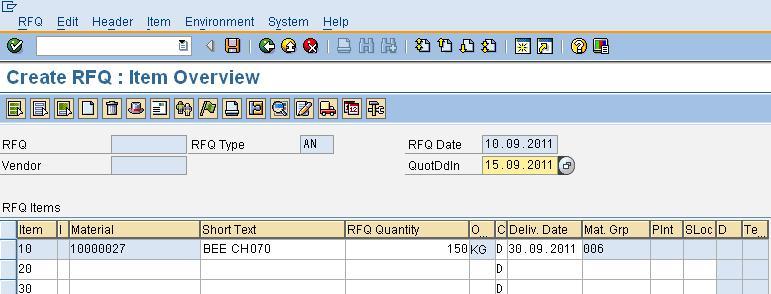
Fill up the required field, i.e. Material Code, RFQ Qty, Delivery Date, Material Group, Plant, Storage Location etc.

STEP : 4
In vendor field fill the vendor code and press enter and SAVE. System automatically adopt the vendor address that shown in the list.

STEP : 5
Follow the same procedure as previous. As per your requirement you create the RFQ and system generated the RFQ No.

STEP : 1
Menu Path: Logistics > Material Management > Purchasing > Request for Quotation > Create RFQ, and press enter.
Transaction Code: ME41

STEP : 2
Fill up the required field and press ENTER.

STEP : 3
Fill up the required field, i.e. Material Code, RFQ Qty, Delivery Date, Material Group, Plant, Storage Location etc.
STEP : 4
In vendor field fill the vendor code and press enter and SAVE. System automatically adopt the vendor address that shown in the list.

STEP : 5
Follow the same procedure as previous. As per your requirement you create the RFQ and system generated the RFQ No.

How to Change and Display RFQ - Request for Quotation in SAP MM - T Code - ME42, ME43
For Change & Display RFQ follow the same procedure as RFQ Creation.
Change RFQ.
Menu Path: Logistics > Material Management > Purchasing > Request for Quotation > Change RFQ, and press enter.
Transaction Code: ME42
Display RFQ.
Menu Path: Logistics > Material Management > Purchasing > Request for Quotation > Display RFQ, and press enter.
Transaction Code: ME43
Change RFQ.
Menu Path: Logistics > Material Management > Purchasing > Request for Quotation > Change RFQ, and press enter.
Transaction Code: ME42
Display RFQ.
Menu Path: Logistics > Material Management > Purchasing > Request for Quotation > Display RFQ, and press enter.
Transaction Code: ME43
Period Closure Activity in SAP FICO
Sample Template Example of Month End & Year End SAP FICO, MM & SD All Activities with T Codes & Details in Word / Doc / Pdf Free Download
Period End Activities in FI Module
|
||||
Process
|
Description
|
Transaction
|
||
MONTH END ACTIVITES
|
||||
- Before Month End
|
||||
- Finance
|
||||
-
Open Posting Period
|
OB52
|
|||
-
Enter Foreign Currency Rates
|
OB08
|
|||
- Controling
|
||||
-
Change Period Lock
|
OKP1
|
|||
- After Month Ends
|
||||
- Materials Management
|
||||
-
Material Period Close
|
MMPV
|
|||
- Production Planning
|
||||
-
Close all open production orders
|
Set Status to TECO
|
C002
|
||
- Fixed Assets
|
||||
-
Distribution & Settelement of all Asset under Construction
|
AIAB/AIBU
|
|||
-
Execute Depreciation Posting Run
|
AFAB
|
|||
-
Process Depreciation Posting Bach Input
|
SM35
|
|||
- Finance & Accounting
|
||||
-
Recurring Entries
|
F.14
|
|||
-
Close Periods for Sub-Ledger & G/L
|
OB52
|
|||
-
GR/IR Clearing Analysis
|
F.19
|
|||
-
GR/IR Clearing
|
F.13
|
|||
-
Interest Calculation
|
F.52
|
|||
-
Profit and Loss Adjustment
|
F.50
|
|||
- Foreign Currency Valuation
|
F.05
|
|||


